Short answer
The following applies to everyday life: short break = standby, longer periods of non-use = shutdown, after updates, driver installations or in the event of problems = restart.
A restart is not fundamentally “better” than a shutdown. Both functions have different tasks. However, under Windows, Restart can be more complete because Fast Startup saves parts of the system state during a normal shutdown.
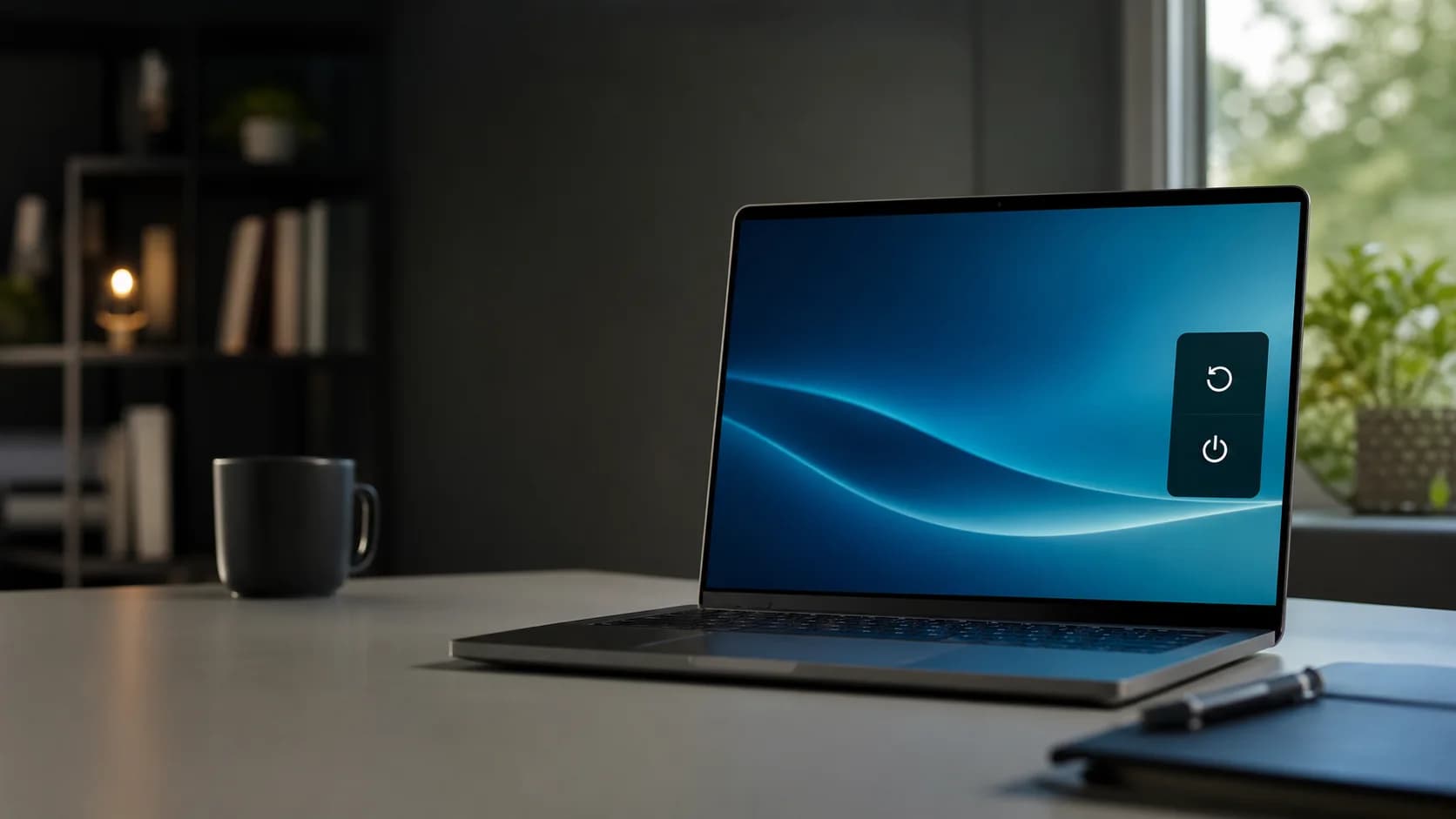
What happens when you restart
Windows terminates running programs, logs out users and reinitializes the operating system, services and drivers. This is not a magical “cleaning” of the PC. However, it creates a clear new system state and can therefore eliminate temporary software or driver problems.
Why Restart Can Be More Complete Than Shutdown
When Windows Fast Startup is enabled, the kernel session is not completely closed during shutdown. Windows saves kernel and driver state in the hibernation file and reloads it the next time you turn it on. However, according to Microsoft Learn, fast startup does not apply to reboot: a reboot performs a full boot cycle.
This does not mean that shutdown is wrong. Quick Startup is a designated Windows feature and speeds up the next startup. However, if Windows or a device driver hangs, “Restart” is usually the more sensible first step.
Windows quick start explained clearly
Quick startup logs out all users and closes applications. However, Windows keeps the already initialized kernel, system services and driver state in one file. This part does not have to be completely rebuilt the next time you switch it on. Microsoft describes the difference to full startup in detail in Delivering a great startup and shutdown experience.
Updates, drivers and temporary software issues
Windows updates occasionally require a restart to complete their installation. Microsoft recommends restart planning in the Windows Update FAQ. Even after a driver installation or if the printer, network, audio or programs react unexpectedly, a conscious restart makes sense: Services and drivers are reinitialized.
Standby, shutdown and restart comparison
Standby
- ideal for short breaks
- consumes little energy
- Work can be continued quickly
Shutdown
- useful when not in use for a long time
- terminates applications and user sessions
- can save kernel and driver state with fast boot enabled
Restart
- useful after updates and driver installations
- first step for temporary problems
- runs the full Windows boot cycle
Microsoft explicitly describes standby as a suitable mode for short breaks and hibernation as a more economical alternative for longer interruptions without charging in shutdown, standby or hibernation.
Power consumption and environment
A PC that is running or in standby consumes more energy than a device that is completely switched off. Standby is still practical for short breaks. Shutting down saves energy when not in use for a long time. Short screen and standby times as well as an efficient energy mode also help. The Microsoft energy recommendations bundle these settings.
Laptop battery: What really counts for battery health
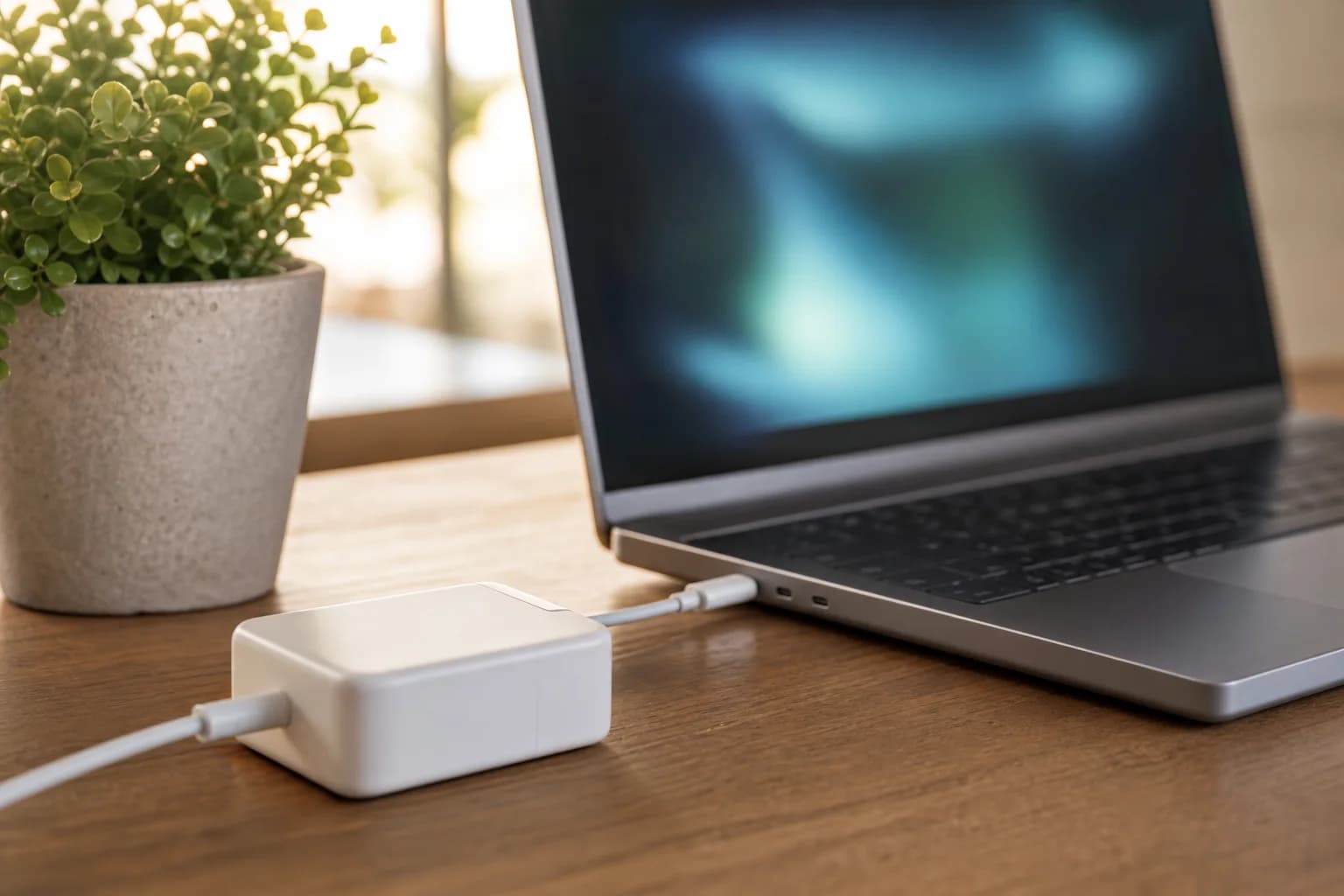
Shutting down alone does not automatically protect the laptop battery. The actual loads on the lithium-ion battery are more important:
- avoid high temperatures during operation or charging
- avoid frequent deep discharges
- keep the battery in a moderate range more often if possible
- use the manufacturer's Smart Charging for continuous mains operation
When possible, Microsoft recommends a moderate charging range of approximately 20 to 80 percent for battery care and warns against high temperatures and deep discharge. Smart charging can prevent a connected device from being permanently maintained at 100 percent. Details can be found in Caring for your battery in Windows and Smart charging in Windows.
Concrete everyday recommendation
- Coffee break or short appointment: Standby.
- After work or several hours of non-use: Shut down.
- After Windows updates or driver installation: Restart when Windows or the installer prompts.
- For a hanging program, network, audio or device problem: save first, then restart.
- With regular use: occasionally deliberately restart, even if the PC otherwise only goes into standby or is shut down using a quick start.
Conclusion
There is no mode that is always correct. Standby saves time during short breaks, shutdown suits longer periods of non-use and a restart ensures a completely new Windows state after changes or problems. When it comes to battery health, temperature and charging behavior matter more than the choice between shutting down and restarting.